

Pastel
RenderMan Stylized Looks Presets | Pastel
This style captures the delicate and powdery textures of pastel art, inviting you to imagine the softness beneath your fingertips. It features soft, blended colors, a subtle grainy texture, and a gentle, atmospheric quality.
1. Scene Setup
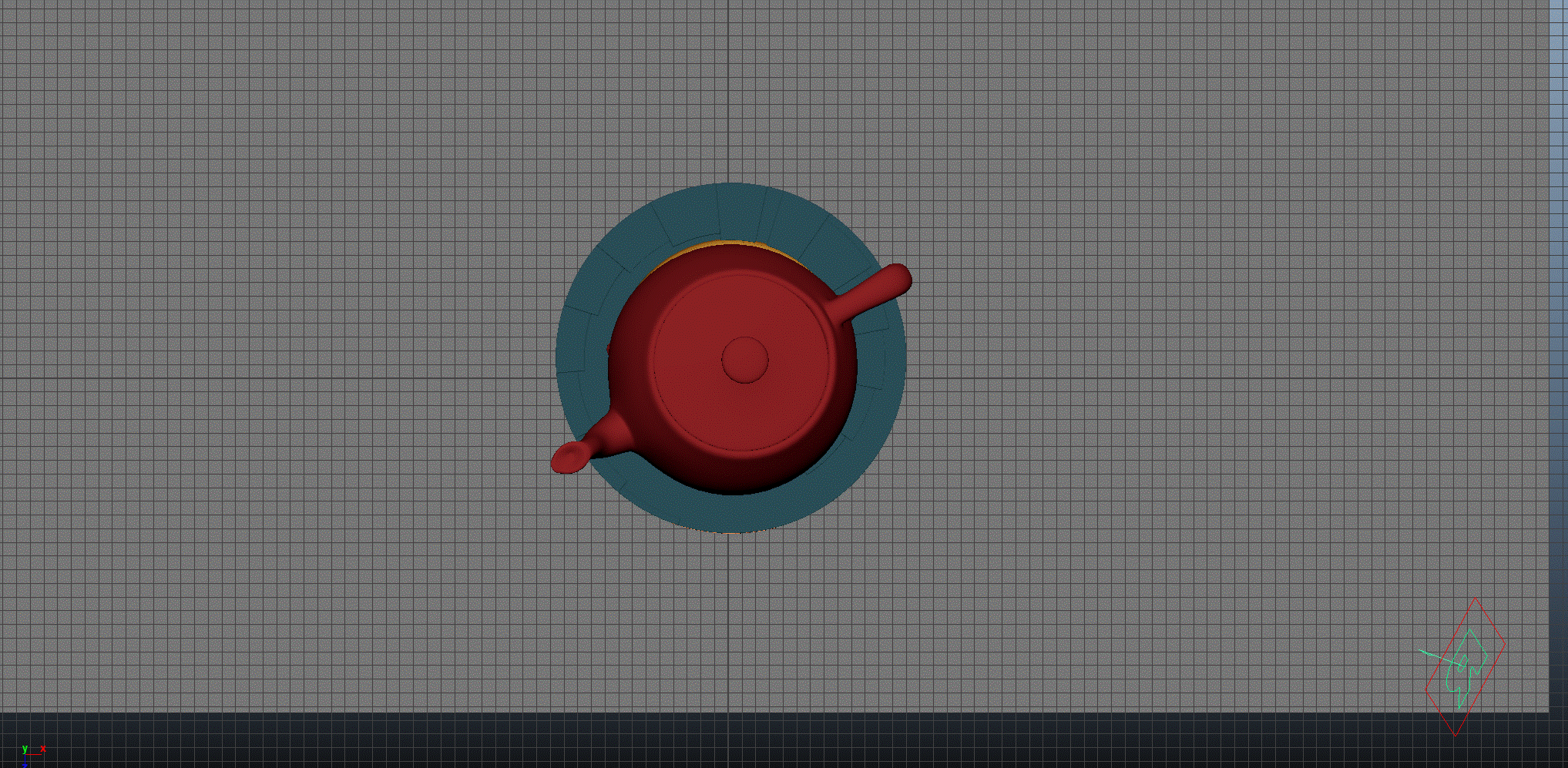
Pastel is the only scene where I’ve used the a Rect Light instead of a Distant Light to light the scene. This is because I wanted a softer shadows without the need to resort to extra indirect bounces in the path tracer.
The scene setup is composed of a single light source with basic material applied for each object.
2. Material Setup
The PxrManifold arrangement along with the two fractal nodes is the standard setup for all of my stylized shading looks. And they are the standard for all of the artistic presets in this pack. I might add additional nodes such as the bump map to control the PxrStylizedToon output and various fractal or worley nodes to control the line width and line masking depending on the desired look.
For Maya I have created scripts that either plug a PxrManifold2D into an existing PxrStylizedControl or allows me to call out the attribute of PxrStylizedControl or PxrManifold2D from an object as I tweak those controls constantly while developing the looks. You can download these scripts from this github repo.
The shading network is controlled from the PxrStylizedControl node with:
PxrManifold2D as I’ll be driving the mapping of the brushes using the surface UV, and also to fine tune the the frequency of the hatching for individual objects.
2x fractoal nodes that are used to distort the line-work on U and V.
A PxrWorley is plugged in in-case we want to vary the line width of our line art.
A bump map is used to vary the shading zones when using PxrStylizedToon
3. AOVs and LPEs
There are no additional AOVs or LPEs other than the default Stylized Looks AOVs.
4. Stylized Layers
The color palette are deep dark colours that are saturated as well.
To achieve the sketching look the display filters are composed of the following categories layered in order:
1x PxrStylizedToon filter to produce the desired toon stepping AOV. It will be used as a signal for specific hatching filters downstream.
3x PxrStylizedHatching filters produce describe the pastel look.
2x PxrStylizedLines filters to produce the desired line-work.
1x PxrStylizedHatching filter for effects.
These layers are showcased and described below:
0. Beauty Pass
1. PxrStylizedToon - Shading
2. PxrStylizedHatching - Pastel
The colors for this filter are taken from the PxrStylizedControl albedo colours. This is the reason why the background is yellow even though the diffuse channel is grey. They are different signals.
3. PxrStylizedHatching - Wash
4. PxrStylizedHatching - Shadow
5. PxrStylizedLines - Curvature
6. PxrStylizedLines - Texture
7. PxrStylizedHatching - LINE Texture
Render It Out.
Once all passes are set up, you are prepared to start rendering your childhood illustrations. Happy rendering!
Preset a hit? Donate to make more!

Previous

Next