
Artbook Sketching
RenderMan Stylized Looks Presets | Artbook Sketching
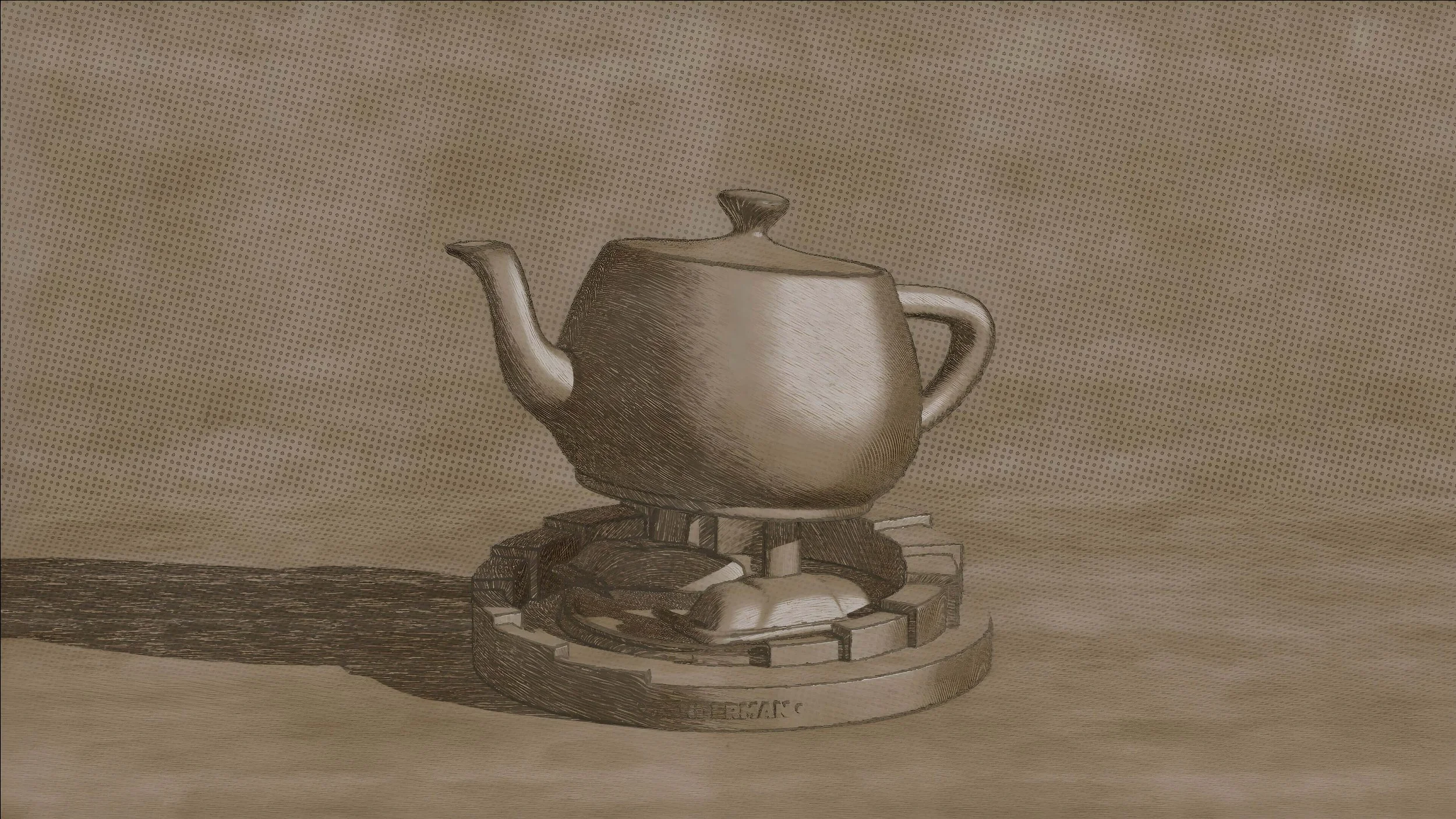
This style captures the immediacy and energy of a quick sketch. It features loose, expressive lines that dance across the page, suggesting form and movement without focusing on precise detail. You can almost hear the scratch of the drawing tool against the surface.
1. Scene Setup
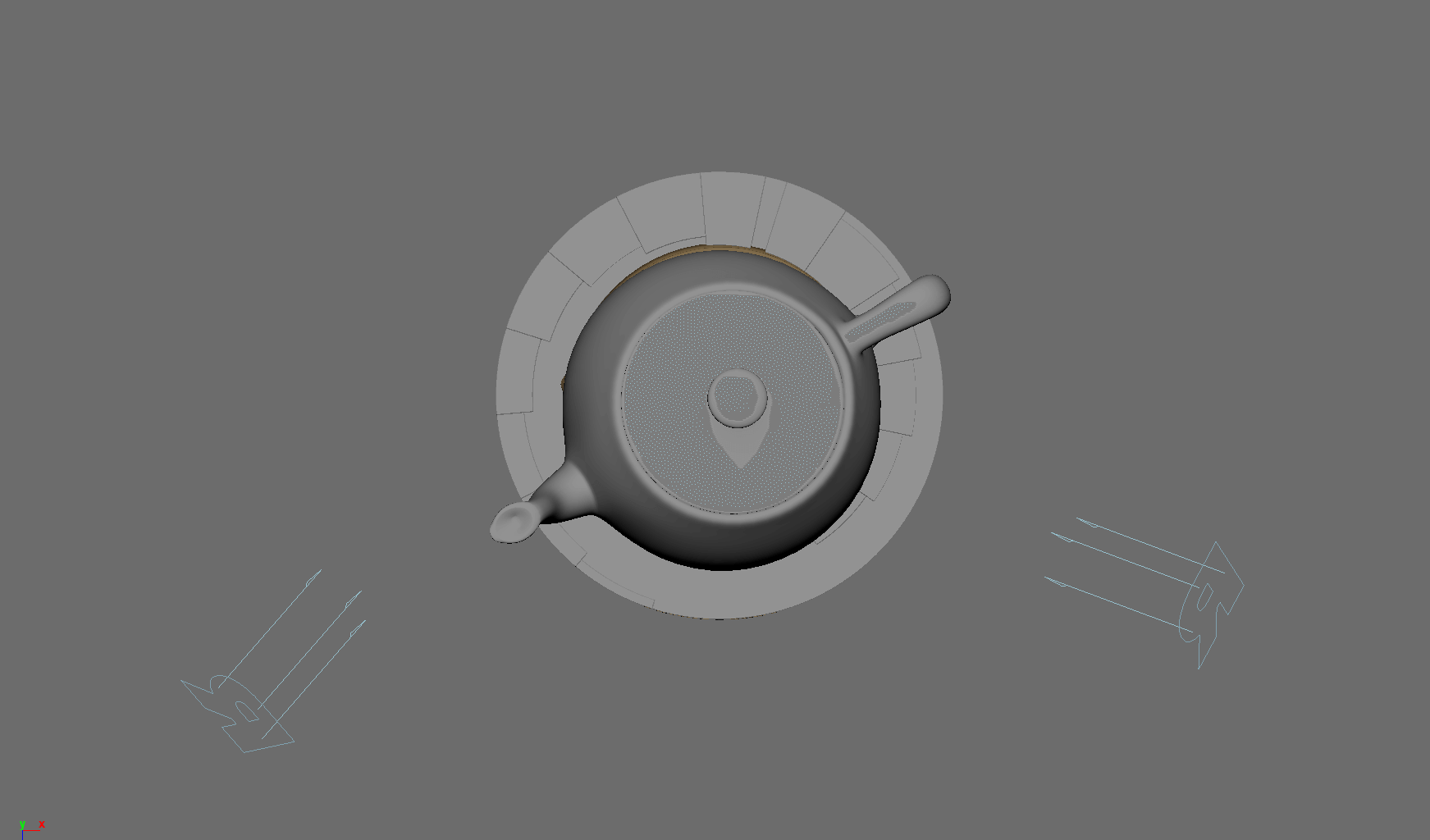
There are two light sources in this scene. The reason for these two light sources is not illumination purposes, but rather to derive a different hatching in the shadow area for each light source. This will become apparent when we layer our PxrStylizedHatching.
2. Material Setup
This shading setup is the standard setup for all of my stylized shading looks. And they are the standard for all of the artistic presets in this pack.
For Maya I have created scripts that either plug a PxrManifold2D into an existing PxrStylizedControl or allows me to call out the attribute of PxrStylizedControl or PxrManifold2D from an object as I tweak those controls constantly while developing the looks. You can download these scripts from this github repo.
The shading network is controlled from the PxrStylizedControl node. there are a few elements there:
PxrManifold2D as I’ll be driving the mapping of the brushes using the surface UV, and also to fine tune the the frequency of the hatching for individual objects.
2x fractoal nodes that are used to distort the line-work on U and V.
A PxrWorley is plugged in in-case we want to vary the line width of our line art.
3. AOVs and LPEs
The AOV setup is quite simple. I’ve assigned on light to the MAIN LPE group, and the other one to the EDGE LPR light group. Once you add a directDiffuse AOV and pick the light group MAIN for instance, then RenderMan will name the AOV directDiffuse_MAIN. There are 4 AOVs in total, two for the MAIN light and two for EDGE light.
directDiffuse_MAIN
Once the main light is given the name MAIN in the LPR light group. Create a directDiffuse AOV and pick the light group name. This will name the AOV accordingly.
directSpecular_MAIN
Once the main light is given the name MAINin the LPR light group. Create a directSpecular AOV and pick the light group name. This will name the AOV accordingly.
directDiffuse_EDGE
Once the main light is given the name EDGE in the LPR light group. Create a directDiffuse AOV and pick the light group name. This will name the AOV accordingly.
directSpecular_EDGE
Once the main light is given the name EDGE in the LPR light group. Create a directSpecular AOV and pick the light group name. This will name the AOV accordingly.
4. Stylized Layers
The color palette for this style is Beige. So all surface materials share the same color without any difference in value or saturation.
To achieve the sketching look the display filters are composed of the following categories layered in order:
1x PxrStylizedToon filter to produce the desired toon stepping AOV. It will be used as a signal for specific hatching filters downstream.
5x PxrStylizedHatching filters produce describe the sketching brush look
2x PxrStylizedLines filters to produce the desired line-work
2x PxrStylizedHatching filters for effects
These layers are showcased and described below:
0. Beauty Pass
1. PxrStylizedToon - Shading
How dark is the lighting is not important as much as the number of zones. How light or dark the image is going to be controlled by the first two PxrStylizedHacting layers. Shadow areas are going to be composited as a Multiply over these two layers.
2. PxrStylizedHatching - Fill
The overall texture of the image. This is different than using a background texture. I’ve played with the blending and input signal to remove any shadow areas from the previous layer. The idea here is to have a flat shading with textures.
3. PxrStylizedHatching - Fill Color Multiplier
The same layer is added on top to darken the previous one as give more color saturation
4. PxrStylizedHatching - Etch
Our first hatching tied to the directDiffuse_MAIN. This is composited on top fo the previous ones as a multiply operation. Dialing the mix value you can control how dark or soft you want the shadows to be
5. PxrStylizedHatching - Dashed
The second hatching brush with a different texture directDiffuse_EDGE. This is composited on top fo the previous ones as a multiply operation. Dialing the mix value you can control how dark or soft you want the shadows to be
6. PxrStylizedHatching - Etch - Specular
Our third and last hatching brush to give texture to the specular from the directSpecular_MAIN.
7. PxrStylizedLines - Curvature
I like to start with a curvature line as the base layer for most of my work, it captures almost all necessary details that I want. On the right is the lines alpha for the curvature.
8. PxrStylizedLines - Definition
Some of the back details for the outline can be retrieved by using a sections line. the line on it’s own produces this alpha.
Once the two are daisy chained we can guarantee that we have line works across all required parts of the image.
9. PxrStylizedHatching - LINE Texture
This hatching filter is similar to the 3 hatching filter. However we are directly sourcing the NPRlineOut as a signal source as we’re going to be using that as a means to give some hatching pattern over our linework.
10. PxrStylizedHatching - Halftone Screen
A final halftone hatching filter over the whole image.
Render It Out.
Once all passes are set up, you are prepared to start rendering your diary rough sketches. Happy rendering!
Preset perfection? Show your appreciation!

Previous

Next