
Detailed Etch
RenderMan Stylized Looks Presets | Detailed Etch
This style demonstrates a variety of hatching techniques used in technical drawings, blending artistic skill with technical precision to represent form and surface details.
This detailed etching look is quite similar to the Distressed Etch look. In fact it is the exact copy with two minor differences. One there canvas background is different. Second change is more subtle in terms of control but profound in visual difference, and that is the input signal remap. By changing the range of the input signal we are able to dictate which parts of the etch brushes fill the areas so we can cover it with less dense brush strokes and more refined one (e.g. brush 2, brush 3 and rush 4. This goes to show the versatility of the Stylized Looks. With a few tweaks you can get a different look.
1. Scene Setup
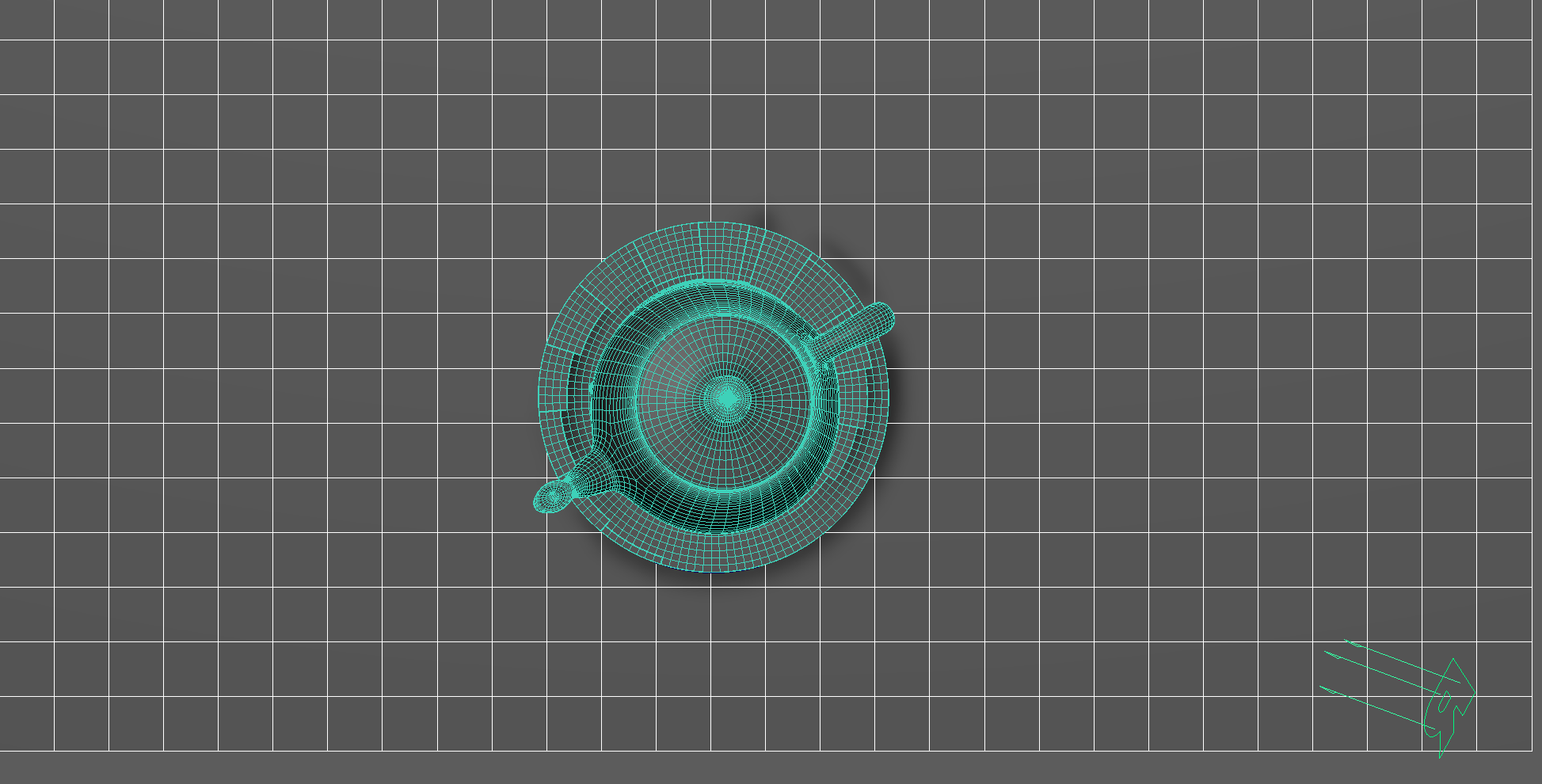
The scene setup is composed of a single light source with basic material applied for each object.
2. Material Setup
The PxrManifold arrangement along with the two fractal nodes is the standard setup for all of my stylized shading looks. And they are the standard for all of the artistic presets in this pack. I might add additional nodes such as the bump map to control the PxrStylizedToon output and various fractal or worley nodes to control the line width and line masking depending on the desired look.
For Maya I have created scripts that either plug a PxrManifold2D into an existing PxrStylizedControl or allows me to call out the attribute of PxrStylizedControl or PxrManifold2D from an object as I tweak those controls constantly while developing the looks. You can download these scripts from this github repo.
The color palette is uniform for this look with the dominant color being light beige.
The shading network is controlled from the PxrStylizedControl node with:
PxrManifold2D as I’ll be driving the mapping of the brushes using the surface UV, and also to fine tune the the frequency of the hatching for individual objects.
A PxrTexture is plugged into the link thickness and line mask to vary the line width and continuity of our line art.
3. AOVs and LPEs
No additional AOVs or LPEs are added other than the default Stylized Looks AOVs.
4. Stylized Layers
The color palette for this style is Beige. So all surface materials share the same color without any difference in value or saturation.
To achieve the detailed etching look the display filters are composed of the following categories layered in order:
1x PxrStylizedToon filter to produce the desired toon stepping AOV. It will be used as a signal for specific hatching filters downstream.
2x PxrStylizedHatching filters produce describe the etching brush look
2x PxrStylizedLines filters to produce the desired line-work
These layers are showcased and described below:
0. Beauty Pass
1. PxrStylizedToon - Shading
2. PxrStylizedHatching - Etch
3. PxrStylizedHatching - Etch Inking Brush
Instead of the crayon brushes to soften the look. I’ve used the Etch Inking brushes because their effect is less pronounced.
4. PxrStylizedLines - Curvature
\
5. PxrStylizedLines - Texture
Render It Out.
Once all passes are set up, you are prepared to start rendering your childhood illustrations. Happy rendering!
Preset a hit? Donate to make more!

Previous

Next